From listing photos to your next post
Make a real estate video from listing photos in three reviewable stages: add your sources, review the story, then create your content pack.
1. Add your listing photos
Sign in and create a listing. Confirm your right to use the photos for marketing and the accuracy of the information you supply. Upload a coherent set of this property's photos rather than stock images or photos of a similar home.
Use an exterior to establish the property, then select rooms and details that support its verified features. Correct photo labels and exclude weak or irrelevant images. Your selections stay with the listing as you prepare the plan.
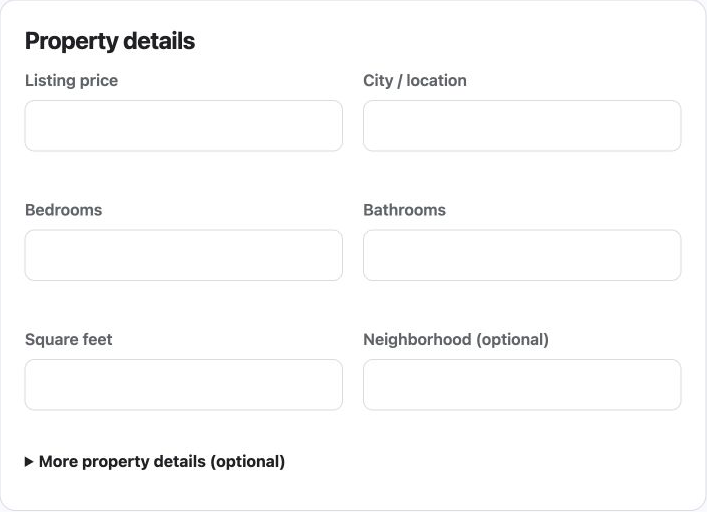 Product screenshot unavailable. The controls are described alongside.
2. Review the story
Choose Property Highlights or Just Listed. Compare Quick Tour, Feature Story and Price & Highlights plans using your selected photos. These are story structures, not new footage of the house.
Read every scene's wording beside its source photo. Confirm that the caption describes what the image or verified listing facts actually support. Correct scene text and framing before generation; do not use a claim just because it sounds persuasive.
Choose a soundtrack or No music. Your saved choice is used in the rendered preview and the finished video. These screenshots show actual controls, not a generated result.
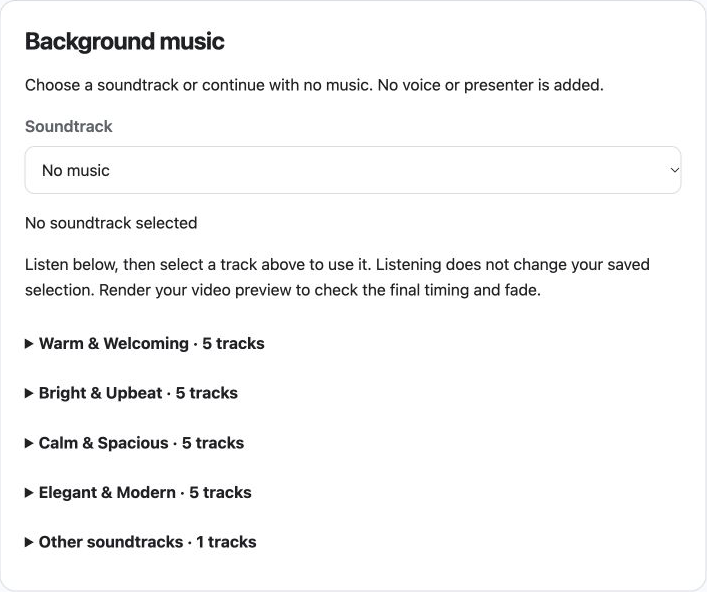 Product screenshot unavailable. The controls are described alongside.
Make the ending yours
Review your name, brokerage and closing CTA. Contact display defaults to off. If you turn it on, choose phone or website; only that authorized contact is shown. Confirm prices and other time-sensitive facts before including them.
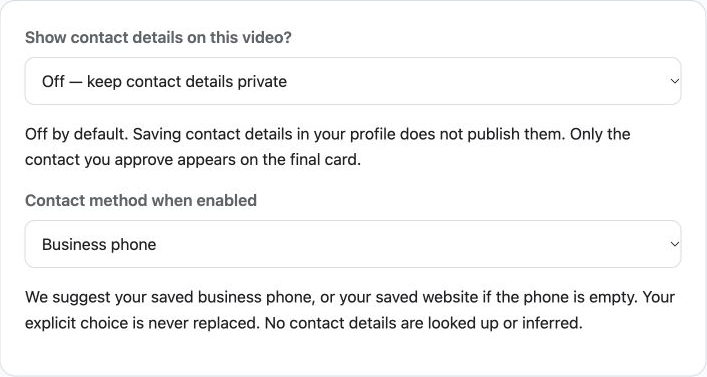 Product screenshot unavailable. The controls are described alongside.
3. Create your content pack
When the plan is ready, explicitly request generation. The app checks availability and your allowance; if a purchase is required, your listing is preserved while you review the plan and payment. A payment return alone does not grant an allowance.
Review the completed English 9:16 MP4, captions, subtitle file, cover and post copy before downloading and publishing. The vertical video is 1080×1920 and 15–30 seconds long; this describes output duration, not a generation-time promise.
This is a photo-based property story, not a filmed walkthrough. No automatic posting is performed. You remain responsible for verifying property facts and meeting your brokerage's advertising requirements.
The facts and choices stay with you
Authorized photos
Use photos you have permission to use for this listing's marketing. Submitted photos stay the visual source; the workflow does not invent rooms or features.
Verified details
You confirm the listing details and selling points. Check time-sensitive facts, including any displayed price, before creating and again before publishing.
Scene review
Review each scene alongside its source photo, including the crop, sequence, captions and supported claims. Saving a plan is not the same as requesting generation.
Your brand and contact choice
Review your name, brokerage and CTA. Contact display defaults to off. If enabled, choose one authorized phone number or website; an explicit website choice is respected.
You publish
Download and review the completed video, cover, subtitles and post copy. VeraReel does not automatically publish the pack or reply to messages on your behalf.
What should I check before publishing?
Review plans and current availability · Read preparation and billing questions · Check approved example availability
Check plan availability before purchasing.